
Business · 6 min read
Free QR code generator for Kenyan businesses: menus, Wi-Fi and WhatsApp
Create static QR codes for useful links and guest Wi-Fi, download PNG files, and test every print before displaying it.
By Dismus Nganyi · Published 10 November 2026 · Last reviewed 10 November 2026
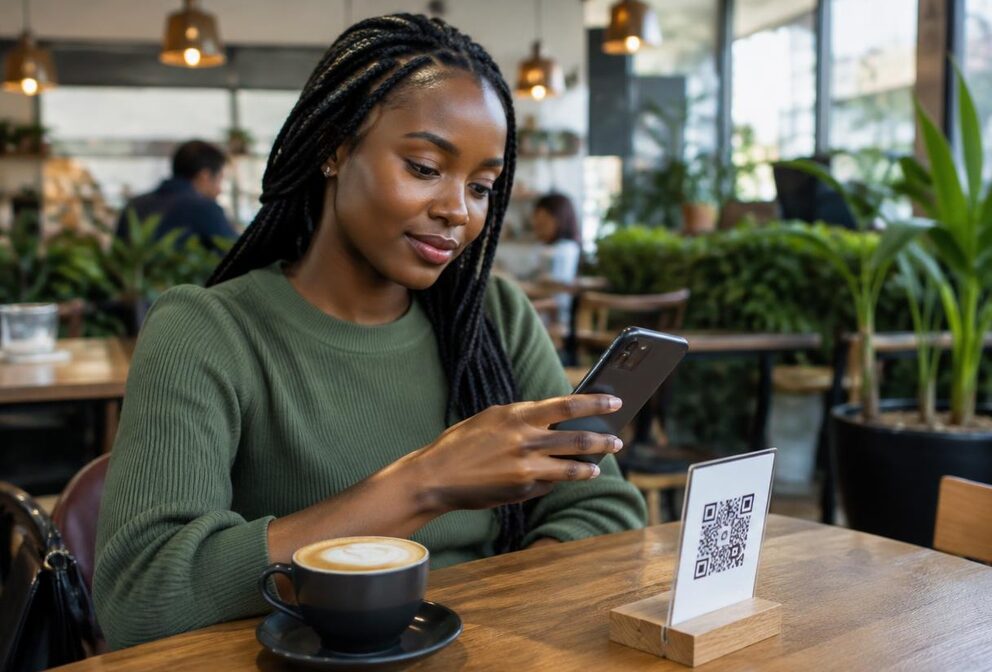
A restaurant can put its menu within easy reach of a table. A cyber café can display guest Wi-Fi details without repeating them at every desk. A shop can direct customers to its website or WhatsApp enquiry line. A QR code is useful for these small tasks when the destination is clear and the printed code actually works. It should make an existing service easier to find, not hide what the customer is opening.
Cyber Kenya's free QR Code Generator turns a link, phone number or other text into a static code. The preview updates as you type, and you can download a PNG for printing. It does not create a menu page, provide internet access or activate a payment service. Decide what the code should contain before generating it, then test the real customer experience on a phone.
Choose one purpose for each code
For a restaurant menu, first prepare a page or document that customers can open without asking for access. Test that destination while signed out of the account that created it. A menu that only opens for the owner will still be inaccessible when reached through a QR code. Keep the page readable on a phone and make sure the prices and availability are current before inviting customers to rely on it.
For a shop website, use the complete address of the intended page. A product-category page may be more helpful than a home page if the sign advertises a specific range. For WhatsApp, generate and test a valid click-to-chat link first, then use that link as the QR content. WhatsApp’s official guidance explains that the receiving number needs an active account. A generic code does not create that account or send a message automatically.
A phone number or plain text is another supported input, but do not assume all phones will react to it in exactly the same way. A scanner may show the text rather than opening the action you expected. Add a plain-language label beside the printed code, such as View menu or Open WhatsApp enquiry. That gives customers a reason to scan and helps them spot an unexpected destination.
Create a guest Wi-Fi code with the right text
For a typical password-protected guest network using WPA security, the standard text format phones recognise is WIFI:T:WPA;S:NetworkName;P:Password;;. Replace NetworkName with your guest network’s exact name and Password with its actual guest password. Keep the punctuation and closing double semicolon. The S field identifies the network, the P field holds the password, and T specifies the security type. The generator accepts this as text rather than configuring the router.
Use a separate guest network where your router supports it. Do not publish the password for the network used by your till, office computers or private devices. Anyone who can scan or photograph the Wi-Fi code may be able to read its contents, including the guest password. It is a convenient way of sharing access details, not a way of hiding them from customers.
Network names and passwords are case-sensitive. A trailing space copied into the text can cause problems, and special characters may require escaping in the Wi-Fi text format. If your credentials contain punctuation such as semicolons or backslashes, do not guess: test carefully and consult your device or router guidance if the result fails. Also confirm the real security type rather than using WPA for every possible network configuration.
Generate and download your code step by step
- 1Open Cyber Kenya's free QR Code Generator and type or paste the complete link, phone number or text you want to encode.
- 2For Wi-Fi, prepare the standard Wi-Fi text with your guest network details. For a menu or WhatsApp conversation, test the destination link separately first.
- 3Read the input again while watching the preview update. Check the destination and spelling, not just whether a square code appears.
- 4Download the PNG. Keep a clearly named copy associated with its purpose so you do not accidentally print an old menu code as a Wi-Fi sign.
- 5Scan the downloaded image using another phone where possible. Confirm that it shows the intended text or opens the correct destination.
- 6Print one proof at the intended size and test that physical print in its intended location before making more copies.
Print large enough for the actual scanning distance
There is no single print size that works for every code, phone and distance. As a practical starting point rather than an official requirement, try a code around three to four centimetres wide on a tabletop sign, then test it with several phones. A wall sign scanned from farther away will usually need a larger code. Dense content and poor print quality can make small codes harder to scan.
Preserve the clear white border around the code, keep strong contrast, and do not stretch the square into a rectangle. Avoid covering the pattern with a logo or decoration. Print at a quality that keeps the small squares distinct rather than blurred. Place the sign on a flat surface, away from folds or curved bottles that distort the pattern. Check for glare if you laminate it or display it behind glass.
Testing should cover more than whether the camera recognises the pattern. At a café table, check that the menu opens over ordinary mobile data. For guest Wi-Fi, test with a device that is not already connected, so an existing connection does not hide an error. Keep a readable alternative nearby for customers who cannot scan, such as the menu itself or staff assistance with the guest network.
Understand what static means
These are static codes: the saved image contains the text you entered at creation. You cannot edit the content inside a printed square later. If the encoded link or Wi-Fi password changes, generate and print a new code. The generator does not offer a managed redirect dashboard, scan analytics or remote code editing. Do not advertise those features when giving a printed code to a customer.
A useful distinction is that a web page can change while its address stays the same. Updating dishes on the same menu page may leave the existing code useful because the encoded address has not changed. Moving the menu to a different address is different: the printed code still points to the old address. Check your signs after website changes and remove any that lead to missing or unrelated pages.
A generic QR code is not an M-PESA payment QR
Do not type a till number into this generator and describe the result as an M-PESA payment code. Safaricom has its own merchant M-PESA QR and Scan to Pay arrangements, with a payment journey described in its official guidance. Those are separate from a generic text or link QR. Obtain payment QR materials and instructions through the official merchant service, and verify the merchant details before authorising any payment.
Protect customers against swapped stickers
The US Federal Trade Commission warns that scammers can cover genuine QR codes with their own and direct people to harmful sites. This is an official advisory, not a claim about a measured rate of Kenyan QR fraud. Inspect your signs regularly for added stickers, loose corners or a new layer covering the original pattern. Scan them yourself during opening checks and after a sign has been moved.
Encourage customers to inspect the destination shown on their phone before opening it, especially if it asks for personal or financial details. A simple menu should not unexpectedly require account credentials. Stop using a suspicious sign, preserve relevant evidence and use trusted official support channels if money or account access is involved. Cyber Kenya never asks for your passwords, M-Pesa PIN or one-time codes. A QR image is not proof that a website or payment request is genuine.