
Business · 6 min read
How to make a Lipa na M-Pesa till poster online (free)
Make a clear Buy Goods or Paybill poster, check the payment details, and print a sign customers can read at your counter.
By Dismus Nganyi · Published 10 November 2026 · Last reviewed 10 November 2026
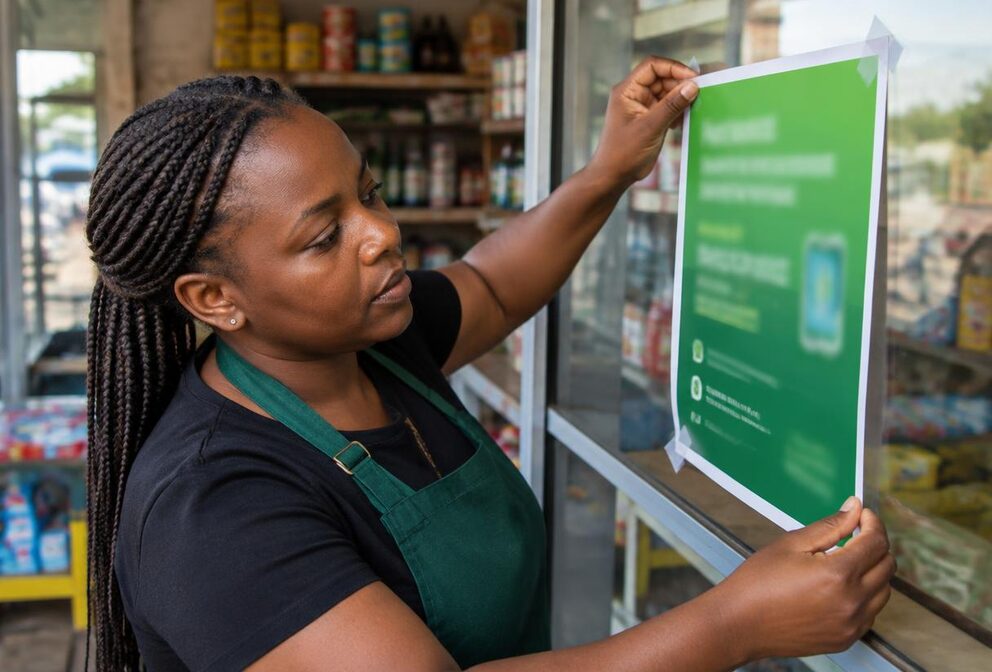
A customer at your counter should not have to guess whether a handwritten digit is a three or an eight. A clear Lipa na M-Pesa poster makes the payment route, number and business name easy to find. That reduces avoidable typing mistakes and helps customers notice when the name on their phone does not match the shop they are paying. It does not remove every risk, so checking the payment remains important.
Cyber Kenya's free Payment Poster Maker helps you prepare a simple payment sign in your browser. You choose the payment type, enter your verified details, and download an A4 landscape design for printing. You do not need to pay a designer for this basic task. You still need an active payment arrangement with the provider; creating a poster does not register or activate a till.
Know whether you need a till, Paybill or agent sign
A Buy Goods till is for customers paying a business for goods or services. Safaricom distinguishes the customer-facing till number from other merchant numbers, including the store number used to operate the till. Use the customer payment number on a Buy Goods sign, not an internal number copied from the wrong message. Ask Safaricom to clarify your merchant details if you cannot tell which number customers should use.
A Paybill payment uses a business number and an account reference. The account reference tells the organisation which customer, invoice or account the payment concerns. Some businesses use a fixed account reference; others require a different reference for each customer. Your sign should make that distinction clear. Do not invent a reference just because a field looks empty, and do not copy another business’s account instructions.
An M-Pesa agent provides agent services, such as cash deposits and withdrawals. An agent sign is not interchangeable with a Buy Goods payment sign. The poster maker has a separate M-Pesa Agent option with agent and store number fields. Use it only for the relevant authorised outlet. A shop selling ordinary goods should not choose it simply because the agent design looks familiar.
What belongs on a useful payment poster?
- The payment route: Buy Goods, Paybill or the appropriate agent service. Keep the label easy to see.
- The correct customer-facing number, checked against your merchant records rather than an old photograph.
- Your business name, with staff able to explain any difference between the shop name and registered recipient name.
- For Paybill, clear account instructions: the fixed reference where applicable, or what each customer should enter.
- For an agent sign, the correct agent and store details. Do not substitute a Buy Goods till number.
Recognisable branding is not official approval
Customers recognise the green M-PESA branding, but colour alone does not prove that a payment number is genuine. Safaricom supplies official merchant materials and has its own brand rules. Its brand toolkit is an official reference for its brand assets. This guide does not prescribe official logo dimensions, mandatory spacing or approved poster layouts. Ask Safaricom about official merchant signage and the rules that apply to your outlet.
A self-made poster is a clear sign, not an official Safaricom sticker. The tool uses a brand-colour header and logo to make the chosen payment type recognisable, but that does not mean Safaricom has approved your particular design. Cyber Kenya is not affiliated with Safaricom or the banks shown in the tool. Keep any official materials supplied to you and follow the provider’s instructions for their use.
Make your poster step by step
- 1Open Cyber Kenya's free Payment Poster Maker and choose M-Pesa Till, M-Pesa Paybill or M-Pesa Agent. Match the option to your actual service.
- 2Enter the verified number and business name. For Paybill, complete the business number and account details. For an agent poster, complete the agent and store numbers.
- 3Watch the live A4 landscape preview update as you type. Text auto-fits, but read the full business name and all number labels before proceeding.
- 4Compare the preview with your original merchant details digit by digit. Ask another staff member to read the digits independently rather than just agreeing with you.
- 5Download the poster as a PNG or PDF. Open the saved file and check it again; an attractive preview is not a substitute for verifying the information.
- 6Print one proof before ordering several copies. Test the payment details with a small amount and confirm the receiving record before displaying the poster.
Print for the place where customers actually pay
Use landscape orientation so the design is not squeezed into a portrait page. Ask the printer to preserve the full design without clipping its edges. A4 is the tool’s preview format, not an official Safaricom requirement stated by this guide. Check the physical print from the customer’s normal standing position. If the digits look faint or the paper is blurred, correct the print settings before making more copies.
Place the poster near the counter at eye level, where customers can read it without leaning across products or blocking another customer. Avoid glare from windows and overhead lights. Lamination can protect the paper from dust and splashes, but a shiny surface can also make it harder to read. Check it under your actual lighting. Remove outdated signs rather than leaving two different numbers visible beside each other.
Check names and confirmation messages
Ask customers to review the recipient details presented by their payment channel before completing payment. After payment, check that the confirmation SMS name matches the expected recipient, along with the amount and transaction details. If the registered name differs from your trading name, establish the correct name with the provider and explain it clearly. Do not dismiss an unexpected recipient as normal without checking.
Staff should verify payment through the business’s own receiving records, not only a customer’s screenshot or a message held up across the counter. If there is a mismatch or missing credit, pause and use the provider’s official support route. Do not pressure the customer to make repeated payments while the first transaction is unresolved. Keep the transaction reference available for the investigation without exposing unrelated customer information.
Watch for swapped posters and other scams
A fake poster can be placed over a genuine sign or swapped onto a busy counter. Make checking displayed payment details part of opening the shop and handing over a shift. Look for fresh tape, a new layer of paper or a number that differs from your saved master copy. Restrict who can replace signs, and check every display when you legitimately change payment details.
Tip: Cyber Kenya never asks for your passwords, M-Pesa PIN or one-time codes. Making or printing a poster requires payment display details, not account access. If someone claims a PIN is needed to approve the poster, stop and contact the provider through a trusted official channel.