Digital Skills · 6 min read
How to check whether your WhatsApp is hacked and remove linked devices
Check suspicious WhatsApp activity, remove unfamiliar devices, protect verification codes and follow the official recovery process.
By Dismus Nganyi · Published 10 November 2026 · Last reviewed 10 November 2026
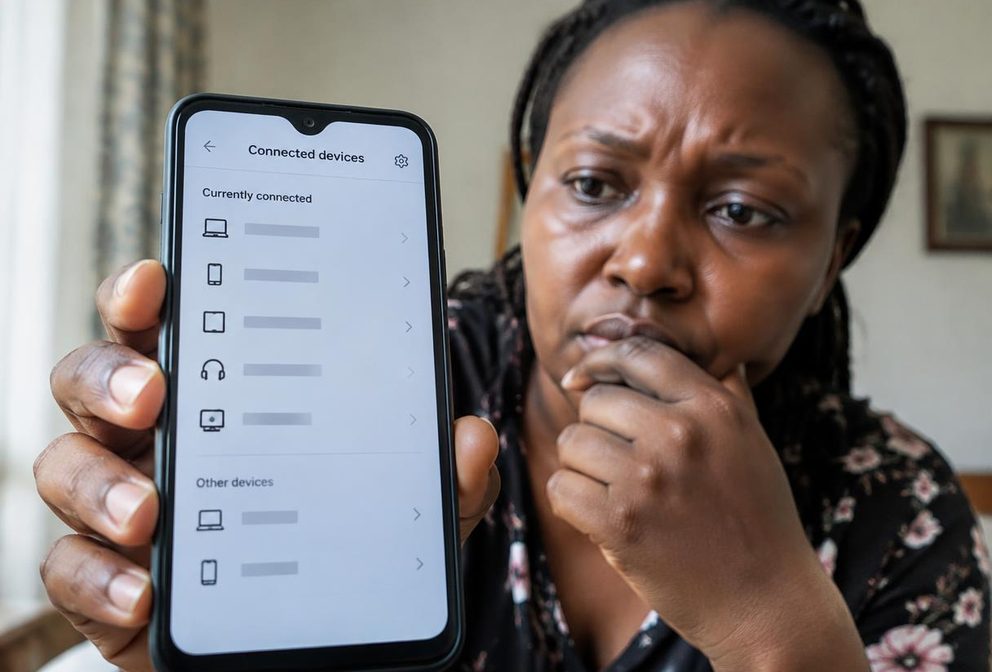
If friends receive messages you did not send, take it seriously. However, a slow phone, a draining battery or a strange call does not prove that WhatsApp is hacked. Start with the account controls you can check: linked devices, registration access and security settings. The right response depends on whether you still control the account on your own phone.
Separate warning signs from guesses
Useful warning signs include an unfamiliar linked device, messages sent without your knowledge, unexpected changes to your profile or a notice that your number has been registered elsewhere. An unexpected registration code can mean someone is trying to sign in. It does not by itself prove that the attempt succeeded.
Ask a trusted contact to describe the suspicious message and send a screenshot through a safe channel. Check whether the message came from your actual number or an impersonator using a similar name and photograph. These are different problems. Someone copying your profile picture does not automatically have access to your account or chats.
Avoid accusing a relative or colleague based only on a device label. Browser names can be unfamiliar even on a computer you used yourself. If you cannot confidently identify a session, logging it out is safer than leaving it connected while you investigate.
Check Linked devices on your primary phone
- 1Open the official WhatsApp app on the phone where you normally use your account.
- 2On Android, open the menu and choose Linked devices. On iPhone, open WhatsApp Settings and choose Linked devices.
- 3Review the devices listed and compare them with computers or other devices you actually use.
- 4Tap an unfamiliar device, choose Log out and confirm if prompted. Repeat for other sessions you do not recognise.
- 5Return to the list to check what remains, then secure your phone’s screen lock.
WhatsApp’s Help Center documents these logout controls, including for the Business app. Menu labels may vary slightly by app version. If you cannot find the screen, update the official app and use its Help section rather than installing a separate device detector or scanner from an advert.
Linked sessions can be legitimate, such as your own desktop. But a shared cyber computer or a phone you no longer control should not remain connected. Do not scan a stranger’s linking QR code to receive a job offer, prize or payment. Linking gives another device access to your account session.
Know what logging out does not fix
Removing an unfamiliar device ends that session’s ongoing access, but it cannot recall information somebody has already seen or copied. If private chats, documents or customer details were exposed, think about who needs a warning. Keep the warning factual and avoid sending more sensitive information while investigating the incident.
If suspicious messages continue, check whether someone has physical access to your unlocked phone. Review phone security, update the operating system and remove unfamiliar apps only through normal device controls. Linked devices are one part of account security, not a complete test for every possible phone compromise.
Tip: If you use WhatsApp Business, review which staff genuinely need linked access. Remove old sessions when a staff member leaves or a shared device changes hands. Keep your business recovery details under your control.
Protect the six-digit registration code
The registration code sent by SMS or a phone call verifies control of your number. A common scam asks you to forward that code because it was supposedly sent to you by mistake. Another claims that the code confirms a group membership, an interview or a payment. Do not share it, even if the request appears to come from a friend.
A scammer may be using a friend’s compromised account. Contact that person through another trusted route before believing an unusual request. Never read out a registration code on a call, paste it into a chat or enter it on a page reached through an unexpected message. Use it only in the official registration flow you initiated.
The registration code is different from a two-step verification PIN or password. Neither should be shared. A genuine helper does not need these secrets to explain where a menu is or help you read an error message.
Enable two-step verification and recovery protection
In WhatsApp Settings, open Account and find the two-step verification controls offered in your version. Follow the on-screen instructions to enable additional protection. Existing accounts may use a six-digit PIN. WhatsApp’s current Help Center says it is upgrading the PIN-based feature to a password, so your screen may show newer options.
Choose a PIN or password that is not obvious and do not reuse your phone unlock code or other account passwords. Add and verify your own recovery email if that option is offered. Protect that email account too, because losing access to a recovery address can make an account problem harder to resolve.
If you see a different security flow from an old tutorial, use the current in-app Help instructions. Do not turn protection off just because a caller claims it blocks a payment or account upgrade. Security settings should be changed only because you understand the change.
Recover an account you have lost access to
- 1Use the official WhatsApp app and follow Log back in or the registration prompts for your own phone number.
- 2Enter the six-digit code received through the verification method offered to you, such as SMS or a phone call.
- 3Complete the requested two-step verification or recovery instructions. If you do not know a PIN, follow the waiting or reset process shown by WhatsApp.
- 4After regaining access, review Linked devices and account security settings again.
- 5Warn contacts through a trusted channel if someone used your account to request money or send harmful links.
WhatsApp says re-registering with the six-digit code logs out devices using the account. Changing a security password alone is not the recovery method for an account that someone else has taken over. If a PIN you do not know blocks completion, follow the official instructions rather than paying for a supposed bypass.
If you cannot receive verification because your SIM or phone is missing, contact your mobile operator through its official support route. Do not repeatedly request codes or guess verification details. Follow any retry instructions displayed by the app.
Reduce harm and avoid recovery scammers
Keep evidence of fraudulent requests, including the number, message and payment reference where relevant. If money was involved, contact the payment provider promptly through its official channel and report criminal conduct to the appropriate authorities. Recovering WhatsApp does not automatically reverse a payment or remove a message from somebody else’s phone.
Use WhatsApp’s in-app help if the official recovery steps fail. Never pay someone who promises to hack the account back or asks for remote control of your phone. Cyber Kenya can explain safety steps, but cannot unlock accounts on your behalf. Cyber Kenya never asks for passwords, M-Pesa PINs, one-time codes or reset links.