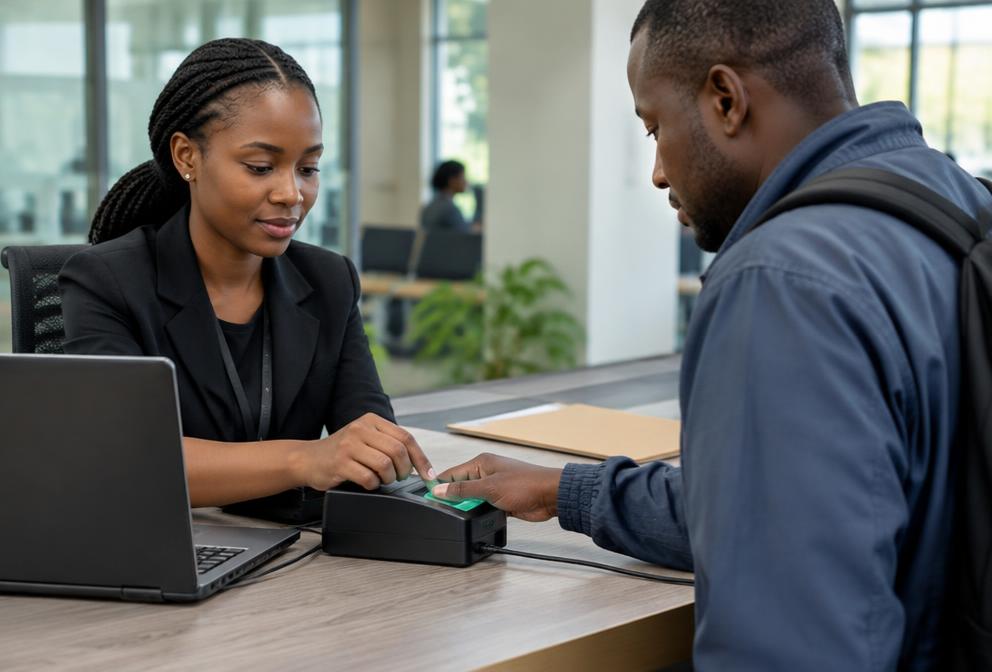
Government · 6 min read
eCitizen account locked? Reset your password safely
Recover your eCitizen login, troubleshoot missing OTPs and find official help when your old phone or email is unavailable.
By Dismus Nganyi · Published 10 November 2026 · Last reviewed 10 November 2026
Want a hand with this on eCitizen?
Prefer to do it yourself? The guide continues below.
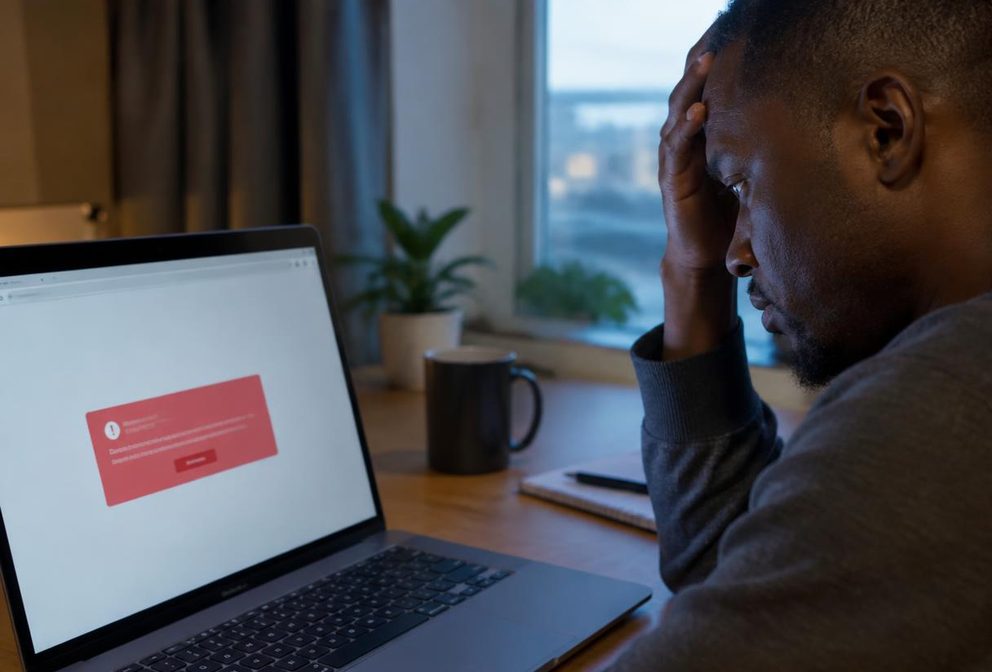
A failed eCitizen login does not always mean your account is locked. You might have an incorrect password, an old contact on the account, a missing verification message or a browser problem. Identify the message on your screen before you make another attempt. Repeated guessing is not a recovery method.
Start at accounts.ecitizen.go.ke and keep control of your phone and email throughout recovery. You must complete the reset yourself. Cyber Kenya can explain the prompts, but never asks for your password, OTP or reset link and cannot remove an account restriction on your behalf.
1. Check which account you are recovering
The official sign-in page accepts an email address or ID number. Use the identity associated with the account you originally created, not a different family member’s details. Check for typing mistakes and unwanted spaces. If your browser fills the fields automatically, confirm it has not inserted an old password or another person’s saved login.
A Kenyan citizen account and a resident account are not interchangeable. A Kenyan citizen should not select resident simply because they live in Kenya; follow the identity category and document requested by the official form. For company services, distinguish the company record from the individual authorised to access it. Do not create a second personal account or change identity category as a way around a login error. Ask support to confirm the correct recovery route if the category is unclear.
2. Use the official forgot-password flow
- 1Open accounts.ecitizen.go.ke yourself. Check the spelling of the domain before entering any information, especially if you arrived from a search advert or forwarded message.
- 2From the sign-in screen, find the password recovery or forgot-password option. Follow the wording currently displayed; the exact arrangement of buttons can change.
- 3Enter the account identifier requested. If the form asks for an account category, choose the category belonging to your existing account rather than trying each option.
- 4Review the available verification destination. Use only a phone number or email you control. Request verification through the option offered by the portal.
- 5Enter the verification code yourself on the official page. Complete the new-password fields according to the rules displayed, then save the change.
- 6Return to the official sign-in page and test the new password once. If it works, review your contact details and sign out when you finish, especially on a shared computer.
Do not assume that a reset request has succeeded just because you clicked submit. Read the confirmation or error message. If the site does not present a recovery option or cannot find your account, stop and use official support rather than following an unofficial reset page.
3. If the OTP does not arrive
- Check the destination shown on screen. A code sent to an old number will not arrive on your new SIM just because both numbers belong to you.
- For SMS, check that your phone can receive ordinary messages and has network coverage. Review blocked messages or filtering settings before requesting another code.
- For email, check spam, junk and other filtered folders. Search for the recovery message, but do not open suspicious attachments or send a code back by email.
- If several codes arrive, use the code associated with your latest active request. Do not keep alternating between multiple reset pages or repeatedly press resend.
- Follow any retry instruction or expiry notice displayed by the portal. If delivery still fails, record the time and error and raise a support ticket.
Tip: Keep one recovery attempt open at a time. Several tabs and repeated requests make it harder to know which verification message belongs to the page you are using.
4. If your phone number or email has changed
A changed contact is an account-verification problem, not just a forgotten password. If the portal offers another registered verification channel that you still control, use it. Do not enter someone else’s number simply to receive a code, and do not ask the current holder of your old number to forward government account messages.
If no available channel belongs to you, contact eCitizen support and explain which registered contact is inaccessible. Ask for the official identity-verification and contact-update procedure. Prepare your account identifier and a clear description of the problem. Submit identity documents only through the official channel specified for your case. Do not send a complete identity document to a social-media commenter claiming to help.
5. Handle locked accounts and browser problems separately
If the message specifically says locked, blocked or restricted, note its exact wording and stop guessing. A password reset may not resolve a separate account restriction. Follow the instructions shown or ask official support what must happen next. There is no verified universal waiting period in this guide, and nobody should sell you a guaranteed instant restoration.
If the page instead fails to load, try a stable connection and an updated browser. Close duplicate tabs and start again from the official sign-in page. A private browsing window can help check whether saved browser data is interfering, but it does not remove a restriction. Never disable security warnings or install remote-control software because a stranger says it will fix your government account.
6. Contact verified eCitizen support
The eCitizen Service Command Centre lists the toll-free helpline 0800 221 000 and support@ecitizen.go.ke. Its report-issue page also accepts tickets without signing in, which is useful when the login itself is the problem. Reach these channels through support.ecitizen.go.ke rather than a contact copied from a comment thread.
In your request, distinguish a failed password reset from a missing OTP, changed contact or explicit restriction. Include when it happened and a redacted screenshot if useful. Keep the ticket reference and reply within the same case where possible. Remove passwords, OTPs, reset links and unrelated personal records from screenshots before sending them. Ask which action is required from you rather than requesting someone to sign in for you.
7. Secure the account after recovery
Choose a password you do not use for your email or other important accounts. Update saved credentials only after confirming the new login works. On a public computer, decline password-saving prompts and sign out rather than only closing the window. If you suspect someone accessed your account, secure your email as well and tell official support about unfamiliar changes or applications.
Tip: Cyber Kenya can guide you through the screen and help organise a support request. You enter every password and verification code yourself. Any Cyber Kenya assistance fee is separate from official government charges, if applicable.